Key takeaways
- Two verified Thunderbolt 4 docking stations for multi-monitor workstations, compared by ports, host charging, video outputs and wired networking.
Disclosure: As an Amazon Associate, we earn from qualifying purchases.
Our top pick: CalDigit TS4 Thunderbolt 4 Dock. Runner-up: Plugable TBT4-UDZ Thunderbolt 4 Dock.
A Thunderbolt 4 docking station is the single-cable heart of a multi-monitor workstation. The laptop connects to the dock with one cable, and the dock takes over everything else: the external monitors, the wired network, the keyboard, mouse and storage, and the charging that keeps the laptop running through a full working day. When it works well, arriving means plugging in one cable and getting straight to work, and leaving means unplugging the same cable.
This guide covers two Thunderbolt 4 docks, and only two, because those are the models that could be checked against real Amazon US listings with verified ASINs for this guide. That short list is deliberate. Dock listings are easy to misread: many docks that look similar on a shelf are not Thunderbolt 4 at all, but plain USB-C docks that lean on a laptop’s alternate modes or on compression software to drive their displays. One widely sold Plugable model, the UD-ULTC4K, was left out of this guide for exactly that reason — it is a USB-C and DisplayLink dock, not a Thunderbolt 4 dock, so it does not belong in a Thunderbolt 4 roundup even though its shape and port layout look the part.
Between the two docks that remain, the choice is a practical one. The CalDigit TS4 is the larger, port-heavy option, with 18 ports and 98W of host charging. The Plugable TBT4-UDZ is a 16-in-1 dock with slightly stronger host charging at 100W and a video layout built around full-size display connectors, with two HDMI and two DisplayPort outputs. Both include 2.5 gigabit Ethernet, which matters more than it first appears for a fixed workstation. The sections below go through each dock in turn, then a buying section explains how to match a dock to a laptop, a monitor set and a desk, so the right choice is clear before anything is ordered.
One caution applies to the Plugable dock in particular. Its listing evidence for this guide was thinner than the CalDigit’s, resting on secondary sources rather than a captured Amazon listing, so its ASIN and specification deserve a fresh check on the live product page before any purchasing decision is made from it. That caution is stated plainly in its section rather than buried.
Quick Picks
- CalDigit TS4 Thunderbolt 4 Dock — Best for a port-heavy desk: 18 ports, 98W host charging and 2.5GbE Ethernet in one hub.
- Plugable TBT4-UDZ Thunderbolt 4 Dock — Best for full-size display cables: a 16-in-1 dock with 100W charging, two HDMI and two DisplayPort outputs, 2.5GbE and card readers.
CalDigit TS4 Thunderbolt 4 Dock
OUR TOP PICK
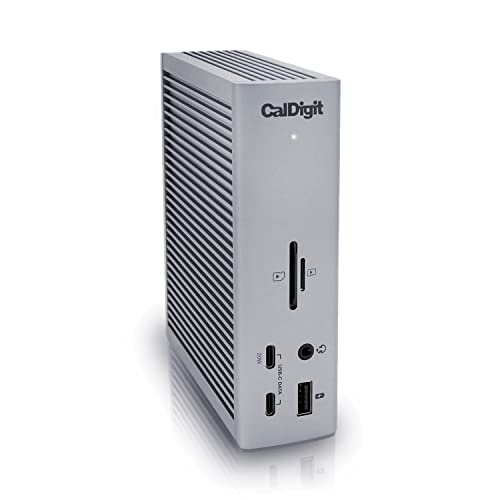
The CalDigit TS4 is the top pick in this guide because it is the dock that asks the fewest compromises of a workstation desk. As recorded from its Amazon listing, it is model TS4-US 500971, it carries 18 ports, it charges the host laptop at 98W, and it includes 2.5GbE Ethernet. That combination — a very large port count, strong charging and fast wired networking in a single unit — is what a fixed multi-monitor workstation actually needs, because the dock is not an accessory that gets used now and then. It is the desk, in electronic form.
Start with the port count, because 18 ports changes how a desk behaves day to day. A workstation setup quietly accumulates connections: two or three monitors, a keyboard, a mouse or trackpad, an external drive for working files, another drive for backup, a headset or audio interface, a webcam, a card reader, a phone cable, perhaps a printer or a drawing tablet. On a laptop alone, that list is impossible — modern thin laptops may have only two or three ports in total. On a smaller dock, the list means swapping cables, which means some devices simply stop being used. With 18 ports, everything on the desk can stay connected all the time, and the only cable that moves is the single Thunderbolt cable between dock and laptop.
Host charging at 98W is the second half of the single-cable promise. A workstation laptop under load — driving multiple monitors, running heavy applications — draws real power, and a dock that charges too weakly leaves the laptop slowly draining during exactly the work the dock exists to support, or forces a second power cable onto the desk and defeats the point. At 98W, the TS4’s charging is in the class that full-size workstation laptops expect from their own power adapters, so one cable genuinely carries data, video and power together.
The 2.5GbE Ethernet port is easy to overlook and hard to give up once used. Wired networking through the dock means the laptop joins the fast, stable network the moment it docks, with no wireless negotiation and no separate adapter to remember. The 2.5 gigabit class is a step above the gigabit networking still common in homes and offices, and for moving large files to and from network storage — the daily reality of video work, photography, software builds and virtual machine images — that step is felt immediately. It also keeps working when wireless conditions are poor, crowded or unreliable.
A note on identification: a similar-looking ASIN with a transposed character appears in one secondary source for the TS4. The verified ASIN is the one linked below, B09GK8LBWS, and it is worth matching the model name, TS4-US 500971, on the product page as well, since docks are sold in regional and revised variants across many brands.
Specs
– Model: TS4-US 500971
– Total ports: 18, as stated on the listing
– Host charging: 98W, as stated on the listing
– Networking: 2.5GbE Ethernet, as stated on the listing
– Interface: Thunderbolt 4
Pros
– 18 ports, the highest count in this guide, so a full desk stays connected
– 98W host charging suits full-size workstation laptops under load
– 2.5GbE Ethernet built in for fast, stable wired networking
Cons
– A large, full-featured hub is more dock than a light travelling setup needs
– Only one of the two docks here; buyers wanting full-size display sockets on the dock itself should compare the Plugable below
Plugable TBT4-UDZ Thunderbolt 4 Dock

The Plugable TBT4-UDZ is the runner-up, and it earns that place with a different balance of strengths. As recorded for this guide, it is a 16-in-1 Thunderbolt 4 dock with 100W host charging, two HDMI outputs and two DisplayPort outputs, 2.5GbE Ethernet, seven USB ports, and SD and microSD card slots. Where the CalDigit leans on total port count, the Plugable leans on its video layout and its charging figure, and for some desks that is the better trade.
The video layout is the headline. Two HDMI and two DisplayPort outputs mean the monitors connect to the dock with ordinary, full-size display cables — the same cables used for desktop PCs, games consoles and every other fixed display in a building. That matters in real rooms. Monitor cables already owned can be reused instead of replaced, a spare cable is easy to find when one fails, and there is no dependence on a particular monitor having a particular input. For a multi-monitor workstation, which is the entire subject of this guide, having four full-size video outputs on the dock itself is a straightforward, flexible arrangement: the displays wire into the dock once, permanently, and the laptop comes and goes.
Host charging at 100W is the strongest charging figure in this guide, two watts above the CalDigit. In practice both docks sit in the same high-power class, and either will keep a workstation laptop charged under load, but the Plugable’s figure is the one to note if the laptop in question ships with a particularly hungry power adapter and its maker specifies charging at the top of the range. As with any dock, the laptop’s own documentation is the authority on what it accepts.
The supporting connections are well chosen for a workstation. Seven USB ports cover the keyboard, pointing device, drives and accessories of a typical desk without the swapping that smaller docks impose. The SD and microSD slots serve the camera-and-card workflow that many workstations exist for: cards come out of the camera and straight into the dock, with no separate reader to keep track of. And 2.5GbE Ethernet matches the CalDigit, so the wired-network argument made above applies here in full — docking means joining the fast wired network instantly.
The honesty note for this dock is about verification, not about the product. The evidence captured for this guide for the TBT4-UDZ came from secondary sources — a tracking record and the maker’s own support material — rather than from a captured Amazon listing, and it is flagged accordingly. Before relying on it, open the linked product page and confirm that the model name TBT4-UDZ, the 16-in-1 description, the 100W charging figure and the mix of two HDMI and two DisplayPort outputs all match the page. If the live page disagrees with anything in this section, trust the live page.
It is also worth repeating the exclusion made in the introduction, because Plugable sells several docks with similar names and shells. The Plugable UD-ULTC4K is not this dock and is not a Thunderbolt 4 dock; it is a USB-C dock using DisplayLink. Anyone shopping for the TBT4-UDZ should buy by the exact model name, not by brand and appearance alone — a confusion that is easy to make and entirely avoidable.
Specs
– Model: TBT4-UDZ
– Format: 16-in-1 Thunderbolt 4 dock, as recorded for this guide
– Host charging: 100W, as recorded for this guide
– Video outputs: 2× HDMI and 2× DisplayPort, as recorded for this guide
– Networking: 2.5GbE Ethernet, as recorded for this guide
– USB ports: 7, as recorded for this guide
– Card slots: SD and microSD, as recorded for this guide
Pros
– Two HDMI and two DisplayPort outputs take ordinary full-size monitor cables
– 100W host charging, the strongest figure in this guide
– SD and microSD slots built in for card-based workflows
– 2.5GbE Ethernet matches the top pick for wired networking
Cons
– 16-in-1 layout has fewer total connections than the 18-port CalDigit
– Listing evidence captured for this guide was thinner than the top pick’s, so a live product-page check is essential before ordering
How to Choose
Choosing between two docks is easier than choosing a laptop, because the decision rests on a short list of concrete checks. Work through them in order and the right dock usually identifies itself.
First, confirm that the laptop is a Thunderbolt 4 machine and understand what its maker allows. A Thunderbolt 4 dock assumes a Thunderbolt 4 host. Laptops with only USB-C ports, or with earlier Thunderbolt generations, may light up some of a dock’s functions and not others, and multi-monitor behaviour is exactly where those limits appear. Check the laptop’s specification for its Thunderbolt version and for how many external displays the maker states it supports through a dock, because the dock cannot exceed the laptop’s own display support no matter how many outputs it carries. This single check prevents most disappointing dock purchases.
Second, count the desk. List everything that will live on it permanently: each monitor, the keyboard, the mouse or trackpad, external drives, audio gear, a webcam, a phone cable, card readers. Then compare that count against the dock. The CalDigit TS4’s 18 ports swallow a large desk whole. The Plugable’s 16-in-1 layout covers a typical workstation comfortably, with seven USB ports for the USB devices among the list. If the count is close, remember that monitors and networking do not consume USB ports on either dock here, which frees the USB count for the devices that truly need it.
Third, decide how the monitors will connect. If the monitors and cables on hand are HDMI and DisplayPort — the common case — the Plugable’s two HDMI and two DisplayPort outputs let everything plug straight into the dock with standard cables. If the monitor set is already wired around the laptop’s existing setup and total connection count matters more than the connector shapes, the CalDigit’s larger port total is the draw. Either way, settle the cabling plan before ordering, and measure the cable runs: a dock usually sits in one fixed place, and monitor cables that are too short are a silly reason for a setup to fail on the first day.
Fourth, check the charging figure against the laptop’s own adapter. Workstation laptops ship with substantial power adapters, and the dock’s host charging should sit in the same class so the battery holds or climbs during heavy work rather than quietly draining. The two docks here are close — 98W for the CalDigit, 100W for the Plugable — and both are in the right class for full-size machines. If a laptop’s maker specifies a particular charging requirement, that specification outranks any general advice, including this guide’s.
Fifth, take wired networking seriously. Both docks include 2.5GbE Ethernet, so neither choice gives it up, but the desk should be arranged to use it: run a network cable to the dock’s position when the workstation is installed, rather than meaning to do it later. A workstation that docks onto wired networking gets consistent addresses, consistent speed and one less wireless variable, and large file transfers to network storage stop being an overnight event.
Sixth, think about the card workflow if there is one. Photographers and videographers move memory cards constantly, and the Plugable’s built-in SD and microSD slots remove a separate reader from the desk. If cards are never part of the work, the point carries no weight; if they are, it can be the deciding detail between two otherwise close docks.
Seventh, verify the exact model at the point of purchase. Both brands here sell multiple docks, some not Thunderbolt 4 at all, and model names differ by a handful of characters. Match the full model name — TS4 with model TS4-US 500971, or TBT4-UDZ — and the ASIN from this guide against the product page, and for the Plugable, confirm the headline figures on the live page as its section advises.
Finally, plan the physical placement. A dock driving several monitors and a desk of devices wants ventilation, a stable surface and cable runs that do not pull. Put it where the single laptop cable reaches comfortably with the laptop in its working position, because that one cable is handled every day, and a cable that only just reaches will be strained and unplugged accidentally. The best dock setup is the one that disappears: arrive, plug in one cable, and every screen, drive and network connection is simply there.
FAQs
Will any Thunderbolt 4 dock drive every multi-monitor setup?
No, because the laptop sets the ceiling. The dock provides the outputs — the Plugable in this guide carries two HDMI and two DisplayPort connections, for example — but the laptop’s own specification decides how many external displays it supports through a dock and at what settings. Check the laptop maker’s stated display support first, then choose the dock whose outputs match the monitors and cables on the desk.
What is the difference between a Thunderbolt 4 dock and a USB-C dock?
A Thunderbolt 4 dock is built to the Thunderbolt 4 standard, with the bandwidth and display support that standard guarantees from a Thunderbolt 4 laptop. A USB-C dock may rely on the laptop’s alternate video modes or on DisplayLink compression to drive its displays, which behaves differently and suits different machines. The distinction is real enough that this guide excluded a popular USB-C and DisplayLink dock, the Plugable UD-ULTC4K, and included only docks verified as Thunderbolt 4 models.
How much host charging does a workstation laptop need from a dock?
Enough to match the class of the adapter the laptop shipped with, so the battery holds up during heavy work instead of draining. The docks in this guide charge at 98W (CalDigit TS4) and 100W (Plugable TBT4-UDZ), both in the full-size workstation class. The laptop maker’s own charging specification is the final authority, so compare the dock’s figure against it before ordering.
Conclusion
For a multi-monitor workstation, the dock is the desk’s foundation, and the two verified options here split the decision cleanly. The CalDigit TS4 is the top pick for a large, permanent setup: 18 ports, 98W host charging and 2.5GbE Ethernet mean everything stays connected through one cable. The Plugable TBT4-UDZ is the runner-up and the better fit where full-size display cables rule the monitor setup, with two HDMI and two DisplayPort outputs, 100W charging, 2.5GbE, seven USB ports and card slots — subject to the live product-page check its section describes. Confirm the laptop’s display support, count the desk’s devices, match the charging figure, verify the exact model name and ASIN on the page, and either dock will turn a laptop into a workstation with a single plug.