Key takeaways
- Best 4K OLED computer monitors for software development: sharp text, wide color and single-cable docking compared for long coding days and panel care.
A 4K OLED monitor changes the daily reality of writing code. At 3840 x 2160, a 32-inch panel holds an editor, a terminal, a browser with documentation, and a preview pane at the same time, with text that stays crisp at the small sizes developers read. OLED adds per-pixel light control, so dark themes show true black instead of the grey wash of a backlit panel. This guide is for developers who spend long hours reading and writing code and want a 4K OLED panel that fits that work.


The picks below are based on manufacturer specifications and Amazon listing details. Every monitor here is a 4K OLED computer monitor sold on Amazon US, judged on one question: how does it behave during an eight-hour coding session, with static interface elements and a laptop or desktop that needs to connect cleanly?
Disclosure: As an Amazon Associate, we earn from qualifying purchases. Product details and availability can change; check the Amazon listing before you buy.
Quick picks at a glance
| Product | ASIN | Best for |
|---|---|---|
| ASUS ROG Swift OLED PG32UCDM | B0CV26XVMD | Single-cable laptop docking with 90 W USB-C power delivery |
| Samsung Odyssey OLED G8 (G80SD) | B0DHJ8B7TP | Glare-free matte screen with built-in smart features |
| MSI MPG 321URX QD-OLED | B0CTSC3VS4 | KVM switching between two machines on one desk |
| Alienware AW3225QF | B0CVQGSRZ9 | Curved immersion and Dolby Vision media between sessions |
What matters most for software development
Text clarity at small sizes. Developers read 10 to 13 point type all day, so pixel density matters more than refresh rate. A 32-inch 4K panel lands near 140 pixels per inch, which keeps small fonts legible, and all four picks share that density, so size and panel finish separate them.
Panel type and subpixel layout. These are all QD-OLED panels, which pair self-emissive pixels with a quantum dot color layer for deep black, high contrast between text and background, and wide color coverage. One trade-off: QD-OLED uses a triangular subpixel arrangement, so some developers notice slight color fringing on high-contrast text at very small sizes. It rarely registers in dark-theme code.
Burn-in mitigation, as the makers state it. Static code is the classic OLED worry: editor chrome, status bars, and taskbars sit in the same place for hours. Every maker here addresses it in hardware or firmware. ASUS uses a custom heatsink with a graphene film to move heat away from the panel. Samsung builds in OLED Safeguard+, which combines thermal modulation with logo detection and brightness adjustment. MSI uses a graphene film heatsink for fanless heat dispersion. Alienware covers the panel under a three-year warranty that includes burn-in. The honest practice is the same across all four: vary what is on screen, let the panel run its pixel refresh cycles, and leave the maker’s care features on.
Ports and the laptop question. Most developers connect a work laptop, and the port layout decides whether the desk stays clean. USB-C with 90 W power delivery carries video and charges the laptop on one cable, which is what the ASUS and MSI picks offer. The Samsung and Alienware picks lean on DisplayPort 1.4 and HDMI 2.1 instead, so a second cable enters the picture. Check the USB-C wattage on the listing before assuming a single-cable setup will charge the machine.
Color coverage for the other half of the job. Code is not the only thing on screen. Documentation screenshots, UI mockups, and design reviews all benefit from wide color, and every pick here lists 99 percent DCI-P3 coverage.
Ergonomics and desk fit. These are large, heavy panels on substantial stands. Measure the desk depth before ordering: a 32-inch screen at arm’s length needs room behind it for the stand, and the Alienware curve asks for a little more. All four support a 100 x 100 mm VESA mount, so an arm is an option when the stand eats too much desk.
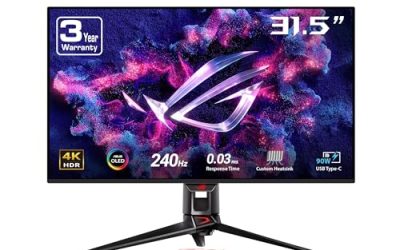
ASUS ROG Swift OLED PG32UCDM
ASUS ROG Swift OLED PG32UCDM — ASIN B0CV26XVMD
| Spec | Detail |
|---|---|
| Panel | 32-inch QD-OLED, flat |
| Resolution | 3840 x 2160 |
| Refresh rate | 240 Hz |
| Response time | 0.03 ms gray-to-gray as listed |
| Color | 99 percent DCI-P3, true 10-bit, 1.07 billion colors |
| HDR | VESA DisplayHDR 400 True Black, HDR10, Dolby Vision |
| Ports | DisplayPort 1.4 with DSC, HDMI 2.1, USB-C with 90 W power delivery, USB hub |
| Burn-in measures | Custom heatsink, graphene film |
| Weight | 19.4 lb as listed |
| Warranty | 3-year warranty as listed |
Why it fits software development
The PG32UCDM is the strongest single-cable pick in this guide. Its USB-C port carries video and delivers 90 W of power, so a work laptop connects with one cable and charges while it drives the panel. That removes the daily friction of docking. The matte QD-OLED panel keeps reflections down in a bright room, and the 99 percent DCI-P3 coverage with true 10-bit color keeps UI work faithful to the designer’s intent. The custom heatsink and graphene film move heat away from the panel during long sessions with fixed interface elements.
Trade-offs
DisplayPort is version 1.4 rather than 2.1, which matters only if a future machine needs the newer standard. The stand is large and the panel heavy, so a shallow desk will feel crowded. Dolby Vision support is listed, but its value in a coding setup is limited to media playback between sessions.
Best for
Developers who dock a laptop daily and want one cable for video and charging. Skip if the desk is shallow or the setup is a fixed desktop, since the USB-C advantage then goes unused.
Samsung Odyssey OLED G8 (G80SD)
Samsung Odyssey OLED G8 (G80SD) — ASIN B0DHJ8B7TP
| Spec | Detail |
|---|---|
| Panel | 32-inch QD-OLED, flat, matte glare-free finish |
| Resolution | 3840 x 2160 |
| Refresh rate | 240 Hz |
| Response time | 0.03 ms gray-to-gray as listed |
| Brightness | 250 nits typical as listed |
| Contrast | 1,000,000:1 as listed |
| Color | 99 percent DCI-P3 as listed |
| HDR | HDR10, VESA DisplayHDR True Black 400 as listed by the maker |
| Ports | DisplayPort 1.4, 2x HDMI 2.1, USB hub |
| Burn-in measures | OLED Safeguard+ with Dynamic Cooling and Thermal Modulation, logo detection |
| Extras | Smart TV apps and Gaming Hub, built-in 10 W speakers, remote control |
| Weight | 18.5 lb as listed |
| Warranty | 3-year manufacturer warranty as listed |
Why it fits software development
The G80SD is the pick for a bright room. Its matte, glare-free finish cuts reflections from windows and overhead lights, the single biggest readability factor once resolution is settled. OLED Safeguard+ is the most explicitly described burn-in system in this group: thermal modulation adjusts brightness based on panel temperature, and logo detection dims static logos, which addresses the status bars and IDE chrome that stay fixed during coding. The built-in smart platform runs documentation videos and streaming without a second device, and the 10 W speakers handle video calls.
Trade-offs
There is no USB-C video input here, so a laptop needs DisplayPort or HDMI plus a separate charger: two cables instead of one. The smart TV layer adds menus and a remote to a work monitor, which some will enjoy and others will find distracting. The 250-nit typical brightness figure is modest for a sunlit room, though the glare-free coating does much of the work brightness alone would otherwise have to do.
Best for
Developers in bright rooms who want the least reflective screen here and like having smart apps built in. Skip if single-cable laptop docking is the priority, since this panel needs a separate charging cable.
MSI MPG 321URX QD-OLED

MSI MPG 321URX QD-OLED — ASIN B0CTSC3VS4
| Spec | Detail |
|---|---|
| Panel | 31.5-inch QD-OLED, flat, glossy finish |
| Resolution | 3840 x 2160 |
| Refresh rate | 240 Hz |
| Response time | 0.03 ms gray-to-gray as listed |
| Brightness | 250 nits typical as listed |
| Color | 99 percent DCI-P3, 1.07 billion colors |
| HDR | VESA DisplayHDR True Black 400 |
| Ports | DisplayPort 1.4, 2x HDMI 2.1, USB-C with 90 W power delivery, KVM switch, USB hub |
| Burn-in measures | Graphene film heatsink, fanless heat dispersion |
| Weight | 27.2 lb as listed |
| Warranty | 3-year manufacturer warranty as listed |
Why it fits software development
The 321URX is the multi-machine pick. Its built-in KVM switch lets one keyboard and mouse serve two connected computers: a work laptop beside a personal desktop or a test machine. The USB-C port carries video and 90 W of charging, so the laptop side of that setup is a single cable. The glossy QD-OLED panel delivers the deepest-looking blacks of the group in a controlled room, and the 99 percent DCI-P3 coverage keeps design review accurate. MSI’s graphene film heatsink disperses heat without a fan, so no fan noise is added to a quiet room.
Trade-offs
The glossy finish reflects more than the matte options, so a window behind the desk will show up on screen. At 27.2 lb as listed it is the heaviest monitor in this guide. The KVM is a two-port USB hub arrangement, so check the exact port mapping on the listing against both machines before assuming every peripheral will switch.
Best for
Developers running two machines on one desk who want one keyboard, one mouse, and one screen for both. Skip if the desk faces a bright window, since the glossy panel will reflect it.
Alienware AW3225QF

Alienware AW3225QF — ASIN B0CVQGSRZ9
| Spec | Detail |
|---|---|
| Panel | 31.6-inch QD-OLED, curved 1700R |
| Resolution | 3840 x 2160 |
| Refresh rate | 240 Hz |
| Response time | 0.03 ms gray-to-gray as listed |
| Brightness | 1000 nits peak HDR as listed by the maker |
| Contrast | 1,000,000:1 as listed |
| Color | 99 percent DCI-P3 as listed |
| HDR | VESA DisplayHDR True Black 400, Dolby Vision |
| Ports | DisplayPort 1.4, 2x HDMI 2.1 with eARC on one port, USB-C downstream with 15 W charging, USB hub |
| Burn-in measures | 3-year warranty including burn-in as listed by the maker |
| VESA | 100 x 100 mm |
| Weight | 20.61 lb with stand, 13.23 lb without stand as listed |
Why it fits software development
The AW3225QF is the only curved panel in this guide, and the 1700R curve changes how a wide editor layout feels: the edges sit slightly closer, so a three-pane layout with an editor, terminal, and browser reads more evenly across the field of view. The 1000-nit peak HDR figure and Dolby Vision support make it the strongest media panel here between work sessions. The USB-C port supplies 15 W of charging, which suits a phone rather than a laptop, and the two HDMI 2.1 ports with eARC make it easy to share the screen with a console or media box.
Trade-offs
The curve is a matter of taste: some love the wrap for wide layouts, others prefer a flat panel where straight lines matter. The USB-C port does not carry enough power to charge a laptop, so the single-cable setup does not apply here. The curved panel also asks for more desk depth than the flat options.
Best for
Developers who want a curved wide layout and strong media performance after hours. Skip if the work involves precise straight-line design review or laptop charging over USB-C.
How to choose between these picks
Start with the cable question, which decides the daily routine. If a laptop docks every morning, the ASUS PG32UCDM and the MSI MPG 321URX both offer USB-C with 90 W power delivery, and the choice between them comes down to KVM: one machine means ASUS, two machines sharing a keyboard and mouse means MSI. If the setup is a fixed desktop, the USB-C advantage disappears and the room decides instead: bright room with windows points to the Samsung G80SD and its glare-free matte finish, while a controlled room with a taste for immersion points to the Alienware AW3225QF and its curve.
Then weigh the finish: matte panels forgive bad lighting, glossy panels reward good lighting with deeper-looking blacks. The Samsung is the only matte panel here, the MSI is the glossiest, and the ASUS sits in the middle with a matte surface that still keeps color saturation strong. Finally, consider burn-in coverage honestly: all four makers state a mitigation system, and the Alienware warranty names burn-in directly, but no panel is immune to a static image left for days. Varying content and letting the panel’s refresh cycles run matters more than the difference between the four systems.
Setup and care for a coding desk
Place the monitor at arm’s length with the top of the screen at or slightly below eye level, and give the stand its full footprint first. Connect over DisplayPort 1.4 from a desktop for the full 4K at 240 Hz signal, or over USB-C from a laptop where the listing states 90 W power delivery, and confirm in the operating system that the panel is running at 3840 x 2160 rather than a scaled fallback. Set the display scaling so code reads at a comfortable size instead of shrinking the font to fit more lines.
For panel care, enable the maker’s own protection features and leave them on. Use a dark theme with a screensaver or display sleep timer so static interface elements do not sit unchanged for hours, and let the panel complete its pixel refresh cycle when prompted rather than postponing it. Wipe the screen only with a dry microfiber cloth, since the coatings on these panels are part of the optical design. Keep the firmware updated through the maker’s own utility, because burn-in mitigation and color behavior are firmware features.
Frequently asked questions
Is a 4K OLED monitor good for reading code all day?
Yes, with the right habits. The 3840 x 2160 resolution at 32 inches gives sharp text at the small sizes developers read, and OLED’s per-pixel light control gives strong contrast in dark themes. The caution is burn-in from static interface elements, which is why this guide favors panels whose makers state a heatsink, a thermal system, or warranty coverage.
Does OLED burn-in make these monitors a poor choice for developers?
Not on its own. Static editor chrome is the worst case for OLED, but every pick here ships with a maker-stated mitigation system. The practical approach is to use dark themes with display sleep enabled, avoid leaving the same window up for days, and let the panel run its refresh cycles.
Which connection should I use from a laptop?
USB-C with 90 W power delivery where the listing states it, which covers the ASUS PG32UCDM and the MSI MPG 321URX; that carries video and charging on one cable. The Samsung G80SD and the Alienware AW3225QF do not offer laptop charging over USB-C at that level, so they need DisplayPort or HDMI plus a charger.
Is the curved Alienware panel good for code, or only for media?
The 1700R curve suits wide editor layouts because the screen edges sit closer, which keeps a three-pane layout even. It is a preference rather than a requirement, and developers doing precise straight-line design work often prefer a flat panel. The curve does not change the resolution, the color coverage, or the text sharpness.
Do I need 240 Hz for software development?
No. The 240 Hz refresh rate on all four picks is a gaming specification, and code does not need it. What matters for development is the resolution, the text clarity, the color coverage, and the port layout. Treat 240 Hz as a bonus for smooth scrolling.
Conclusion
For most developers, the ASUS ROG Swift OLED PG32UCDM is the simplest choice: one USB-C cable for video and 90 W charging, a matte panel that behaves in bright rooms, and a heatsink for panel longevity. Developers with two machines should take the MSI MPG 321URX QD-OLED instead, since its KVM switch and the same 90 W USB-C port make one desk serve both computers. The Samsung Odyssey OLED G8 (G80SD) is the pick for bright rooms and for anyone who wants smart apps and speakers built in, accepting the extra charging cable. The Alienware AW3225QF suits developers who want a curved wide layout and the strongest media performance of the group. Whichever one fits the desk, check the Amazon listing for the exact model and ASIN before ordering, since these monitors ship in lookalike variants.