Key takeaways
- Compare 5 4K OLED computer monitors for video editing, with QD-OLED and WOLED panels, wide color gamut coverage, HDR support, and connectivity for editing setups.
Choosing a monitor for video editing is really choosing the screen your color and exposure decisions will live or die on. A 4K OLED panel shows true blacks, fine highlight detail, and a wide color gamut, so grading mistakes become visible before a project is exported rather than after a client watches it. The wrong panel hides crushed shadows, shifts skin tones, or makes HDR footage look flat, and those errors are hard to undo once a video is published.
This guide is for editors cutting 4K footage in Premiere Pro, DaVinci Resolve, or Final Cut Pro, along with colorists and creators who want a large, sharp canvas for timelines and scopes. Every monitor below was picked from the name and specifications shown on its Amazon product page, and each one is a 32-inch computer monitor with a 3840 x 2160 OLED panel.
Quick Picks
As an Amazon Associate we earn from qualifying purchases.
| Product | Best for | Key spec from title |
|---|---|---|
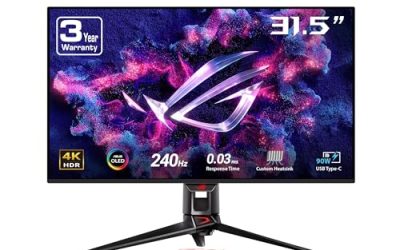
| ASUS ROG Swift PG32UCDM | Editors who want a 90W USB-C connection for a laptop setup | 32-inch UHD 3840 x 2160 QD-OLED, 240Hz, 99% DCI-P3 |
| Samsung Odyssey OLED G8 G80SD | Bright rooms where reflections distract from grading | 32-inch 4K UHD QD-OLED, 240Hz, glare-free display |
| LG UltraGear 32GS95UE | Editors who also play games and want a dual-mode panel | 32-inch UHD OLED, 240Hz, DisplayHDR True Black 400 |
| MSI MPG 321URX QD-OLED | Color-focused work with a listed Delta E figure | 32-inch 4K UHD QD-OLED, 240Hz, 90W USB Type-C |
| Alienware AW3225QF | HDR grading with Dolby Vision support | 32-inch 3840 x 2160 QD-OLED, 240Hz, curved 1700R |
How to Choose
Resolution and Panel Type
A 3840 x 2160 panel at 32 inches lets an editor view 4K footage at full resolution while keeping room for a timeline, scopes, and bins on the same screen. At this size the pixel density is high enough that text stays sharp and fine detail in footage is easy to inspect. QD-OLED panels tend to list wider DCI-P3 coverage, while WOLED panels such as the LG below offer a dual-mode option that drops to a lower resolution for a higher refresh rate. Either panel type delivers the per-pixel dimming that makes OLED blacks look genuinely black, so the choice comes down to gamut figures, extra modes, and connectivity.
Color Gamut and Bit Depth
Video editing lives or dies on how much of the color space a monitor can show, so check the DCI-P3 coverage and bit depth stated on the listing before anything else. A panel listing 99% DCI-P3 coverage with true 10-bit color can display far more of the colors in log footage than a standard 8-bit screen, which matters when pulling a grade toward teal shadows or warm highlights. Some listings also state a Delta E figure, which describes how far displayed colors sit from their intended values. Even so, a listed figure is a starting point, and editors doing paid color work should still calibrate with an external colorimeter and the software their workflow uses.
HDR and Brightness
HDR grading needs a monitor that can show bright highlights and deep shadows in the same frame, and OLED handles that contrast far better than a backlit LCD. Look for the HDR certification on the listing, such as DisplayHDR True Black 400, and note whether Dolby Vision is listed, since that affects how HDR masters are previewed. Peak brightness figures on OLED listings are usually measured on a small window of the screen, so a high peak number does not mean the whole screen stays that bright. Editors should preview HDR timelines in the same lighting they will grade in, and confirm their editing software recognizes the monitor as an HDR display.
Connectivity and Burn-In Care
An editing monitor needs the right inputs for the machine driving it, whether that is a desktop GPU or a laptop docked over a single cable. HDMI 2.1 and DisplayPort 1.4 or 2.1 both carry 4K at high refresh rates, while USB-C with power delivery lets a laptop charge and send video through one lead. OLED panels can retain images when static interface elements sit on screen for long sessions, so look for pixel refresh features, a custom heatsink, and the length of burn-in coverage in the warranty. Hiding taskbars, rotating wallpapers, and running the panel refresh cycle all help a monitor last through years of timeline work.
The 5 Best Options
ASUS ROG Swift PG32UCDM

The PG32UCDM pairs a third-generation QD-OLED panel with a custom heatsink and graphene film, a combination aimed at keeping the panel cool during long sessions. Its 240Hz refresh rate is far beyond what editing needs, yet it makes scrubbing through a timeline feel smooth, and the 90W USB-C port lets a laptop drive the display while charging from the same cable. The listing states 99% DCI-P3 coverage with true 10-bit color, which gives editors a wide gamut to work in when grading log footage.
Specs
- 32-inch QD-OLED panel with 3840 x 2160 resolution
- 240Hz refresh rate with 0.03ms response time
- 99% DCI-P3 coverage and True 10-bit color
- G-SYNC Compatible
- Custom heatsink with graphene film
- 90W USB-C power delivery
Best for: Laptop-based editors who want one cable for video, data, and charging.
Watch out for: The glossy QD-OLED surface can pick up reflections in a bright room, so position it away from windows.
Samsung Odyssey OLED G8 G80SD

Samsung’s G80SD stands out in this group because its glare-free coating tackles the reflections that make grading in a bright room frustrating. The sleek metal design and adjustable stand suit a tidy desk, while the smart features built into the monitor let it run streaming apps without a connected computer. Underneath, the QD-OLED panel runs at 240Hz with a 0.03ms response time, and the listing names G-Sync compatibility for editors who also game on the same screen.
Specs
- 32-inch 4K UHD QD-OLED panel
- 240Hz refresh rate with 0.03ms response time
- G-Sync Compatible
- Glare-free display
- Sleek metal design
- Model LS32DG800SNXZA with a 3-year warranty
Best for: Editors working in a bright room who need reflections kept under control.
Watch out for: The built-in smart platform adds menus and apps that editing-only users may never open.
LG UltraGear 32GS95UE
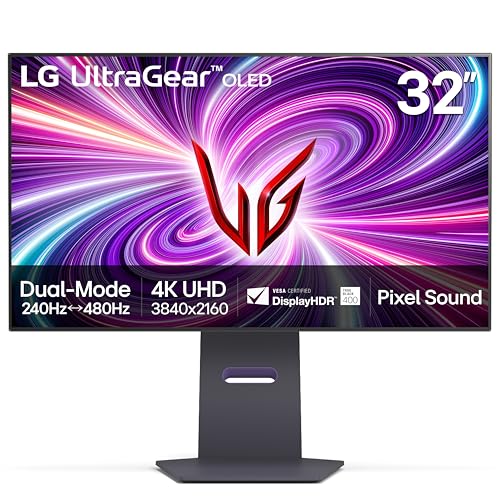
The 32GS95UE is the only monitor here with a dual-mode panel, switching between 4K at 240Hz and Full HD at 480Hz, which suits an editor who also plays fast competitive games after work. Its WOLED panel carries DisplayHDR True Black 400 certification, and the listing includes both FreeSync Premium Pro and NVIDIA G-Sync support. Height, tilt, and swivel adjustments on the stand make it easy to line the screen up with a second monitor, and HDMI 2.1 plus DisplayPort cover modern GPUs and consoles alike.
Specs
- 32-inch UHD OLED panel with 3840 x 2160 resolution
- 240Hz refresh rate with 0.03ms response time
- Dual mode: 4K at 240Hz or Full HD at 480Hz
- DisplayHDR True Black 400
- AMD FreeSync Premium Pro and NVIDIA G-Sync
- HDMI 2.1 and DisplayPort inputs
- Tilt, height, and swivel stand
Best for: Editors who want one display for 4K editing sessions and high-refresh gaming.
Watch out for: The panel uses DisplayPort 1.4 rather than the newer DisplayPort 2.1 standard.
MSI MPG 321URX QD-OLED

MSI’s 321URX is a straightforward flat QD-OLED panel with the editing essentials covered: 4K resolution, a 240Hz refresh rate, and a 0.03ms response time. The listing states 99% DCI-P3 coverage with a Delta E of 2 or less, a useful pair of figures for editors comparing color claims across monitors. A 90W USB-C port, full-bandwidth HDMI 2.1, and DisplayPort 1.4a give it flexible connectivity, and the KVM feature lets one keyboard and mouse switch between two connected machines.
Specs
- 32-inch 4K UHD QD-OLED panel with 3840 x 2160 resolution
- 240Hz refresh rate with 0.03ms response time
- 99% DCI-P3 coverage with Delta E of 2 or less
- DisplayHDR True Black 400
- 90W USB Type-C power delivery
- HDMI 2.1 and DisplayPort 1.4a
Best for: Editors who compare listed color figures and want KVM switching between two machines.
Watch out for: The flat panel has no built-in speakers listed, so plan for separate audio.
Alienware AW3225QF

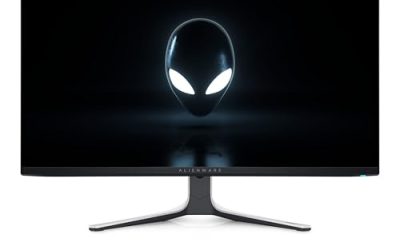
The AW3225QF is the only curved monitor in this list, with a 1700R bend that wraps the timeline and preview window slightly around the viewer. Its QD-OLED panel lists 99% DCI-P3 coverage, Dolby Vision, and DisplayHDR True Black 400, a strong set of HDR credentials for grading work. The 240Hz refresh rate and 0.03ms response time keep motion smooth, while HDMI 2.1 and DisplayPort 1.4 connect to current GPUs. A factory calibration report is included in the box, which gives editors a documented starting point before they run their own calibration.
Specs
- 32-inch 4K UHD QD-OLED panel with 3840 x 2160 resolution
- Curved 1700R screen
- 240Hz refresh rate with 0.03ms response time
- 99% DCI-P3 coverage
- Dolby Vision and VESA DisplayHDR True Black 400
- 1.07 billion colors
- HDMI 2.1 and DisplayPort 1.4
Best for: Editors grading HDR footage who like a curved screen for long timeline sessions.
Watch out for: The curve can make straight lines in footage look slightly bent until the eye adjusts.
Which One Fits Your Situation
You Grade HDR Footage in a Dark Room
Pick the Alienware AW3225QF, because its listing pairs Dolby Vision with DisplayHDR True Black 400 and 99% DCI-P3 coverage, giving HDR timelines deep blacks and bright highlights in the same frame. The curved panel also keeps the edges of a wide timeline at a more even viewing distance in a dark edit suite.
You Edit on a Laptop at a Small Desk
Pick the ASUS ROG Swift PG32UCDM or the MSI MPG 321URX QD-OLED, since both list 90W USB-C power delivery that charges a laptop while carrying the video signal. One cable replaces a charger and a video lead, which keeps a small desk clear and makes docking and undocking a daily routine instead of a chore.
You Share One Screen Between Editing and Gaming
Pick the LG UltraGear 32GS95UE, because its dual-mode panel runs 4K at 240Hz for editing and drops to Full HD at 480Hz for fast games. The combination of FreeSync Premium Pro and G-Sync support also covers both AMD and NVIDIA graphics cards without forcing a choice of ecosystem, so the same display serves work and play equally well.
You Work in a Bright Room With Windows Nearby
Pick the Samsung Odyssey OLED G8 G80SD, because its glare-free coating is the clearest answer to reflections in this group. The 240Hz QD-OLED panel still delivers the contrast and color range editing needs, while the anti-glare surface keeps the image readable when daylight hits the desk from the side all afternoon.
Common Mistakes
- Buying a 4K IPS or VA monitor by mistake when the goal was an OLED panel, since the panel type changes black levels and contrast completely.
- Choosing an OLED monitor with a lower resolution than 3840 x 2160 and losing the ability to preview 4K footage at full size.
- Trusting a listed color gamut figure as a guarantee, instead of calibrating the panel for the editing software and lighting in use.
- Ignoring burn-in care and leaving static timeline interfaces on screen for entire workdays without running pixel refresh cycles.
- Picking a monitor whose ports do not match the computer, such as a laptop with only USB-C and a monitor without USB-C video input.
Frequently Asked Questions
Is a 4K OLED monitor good for video editing?
Yes, because the 3840 x 2160 resolution shows 4K footage at full size while OLED per-pixel dimming produces true blacks and strong contrast. The wide color gamut coverage listed on these panels also helps when grading log footage, though editors doing paid color work should still calibrate the screen.
Do I need to calibrate a 4K OLED monitor for editing?
Calibration is recommended for any serious color work, since factory settings and listed gamut figures describe the panel rather than the exact conditions of a given room. An external colorimeter and calibration software create a profile matched to the monitor, the lighting, and the editing application in use.
Will OLED burn-in be a problem for video editing?
Burn-in is a real risk because editing interfaces keep static toolbars, timelines, and scopes on screen for hours. Modern OLED monitors include pixel refresh cycles, screen shift, and heatsinks to reduce the risk, and hiding static elements plus running refresh cycles regularly helps the panel last longer.
Should I choose a 32-inch or a 27-inch 4K OLED monitor?
A 32-inch panel gives more room for a timeline, preview window, and scopes side by side, which suits editors who work with complex projects. A 27-inch panel offers higher pixel density and takes up less desk space, so it fits smaller desks or editors who sit close to the screen.