Key takeaways
- Four 4K OLED monitors compared for workstation upgrades: colour accuracy, text clarity, ports, burn-in care and desk fit, so you can pick the display.
Upgrading a workstation display is not a simple swap of one screen for a sharper one. A 4K OLED monitor changes how text renders, how colour behaves across the screen, and how much desk space and graphics power the setup demands, so the choice reaches into daily comfort as much as image quality. Picking the wrong panel can leave small text looking fringed, a bright room washing out dark scenes, or a laptop that cannot charge through the monitor at all.
This guide is for designers, video editors, developers and anyone who spends long days in front of a screen and wants OLED contrast without giving up workday practicality. Each monitor below was chosen from its Amazon listing title and specifications, with attention to panel type, resolution, refresh rate, colour coverage, ports and burn-in protection, so the comparison reflects what the listings actually promise rather than a generic spec sheet.
Quick Picks
As an Amazon Associate we earn from qualifying purchases.
| Product | Best for | Key spec from title |
|---|---|---|
| Alienware AW3225QF | Curved immersion with console and PC use | 32-inch 4K QD-OLED, 240Hz, 0.03ms |
| Samsung Odyssey OLED G8 G80SD | Bright rooms and a slim, glare-free setup | 32-inch 4K QD-OLED, 240Hz, 0.03ms |
| LG UltraGear 32GS95UE | Colour work plus a dual-mode high refresh option | 32-inch 4K OLED, 240Hz, 0.03ms |
| MSI MPG 321URX QD-OLED | Flat panel with KVM for two machines | 32-inch 4K QD-OLED, 240Hz, 0.03ms |
How to Choose
Panel type and text clarity
Not every OLED panel renders text the same way, and this matters more on a workstation than anywhere else. QD-OLED panels use a triangular subpixel layout that can add colour fringing to small text, while WOLED panels use a different subpixel structure with a white subpixel that affects sharpness in its own way. Read the panel type in the listing before buying, then check whether the monitor has a clear-text or sharpness setting in its menu. If your day is mostly documents, code and spreadsheets, prioritise the panel whose text rendering suits you, and plan to run the display at a sensible scaling level so fonts stay crisp rather than tiny.
Size, resolution and desk depth
A 32-inch 4K screen gives roughly the same pixel density as a 27-inch 1440p screen, which means text stays readable while four windows can sit side by side. Measure your desk depth before ordering, because a 32-inch panel on a shallow desk pushes the screen closer than your eyes may like, and the stand footprint matters as much as the panel. A monitor arm on a VESA mount frees space and lets you set the exact height and distance. If your desk is under 60 centimetres deep, consider the arm as part of the upgrade rather than an afterthought, and confirm the monitor supports the standard 100 by 100 millimetre mount.
Colour accuracy and HDR for creative work
Workstation buyers often need colour they can trust, not just colour that looks vivid in a showroom. Look for wide DCI-P3 coverage, a factory calibration report in the box, and a listing that names the HDR certification rather than vague HDR claims. DisplayHDR True Black ratings are the meaningful marker on OLED, because they certify deep blacks rather than peak brightness alone. If you edit photos or video, check whether the monitor has an sRGB clamp mode, since a wide-gamut panel without one can oversaturate everyday content. A hardware calibration option is a bonus, not a requirement for most buyers.
Ports, USB-C power and burn-in care
Connectivity decides whether the monitor simplifies your desk or complicates it. A USB-C port with power delivery can charge a laptop and carry video over one cable, but the wattage varies widely, so check the listing figure against what your laptop needs. DisplayPort 1.4 handles 4K at 240Hz with compression, while DisplayPort 2.1 and full-bandwidth HDMI 2.1 give more headroom for consoles and future graphics cards. For burn-in, look for pixel refresh routines, panel shift features and a warranty that covers burn-in, then use a screensaver and hide static taskbars where you can.
The 4 Best Options
Alienware AW3225QF

The Alienware AW3225QF suits a workstation that doubles as a console and media station, thanks to a curved QD-OLED panel that wraps the field of view and strong HDR handling. Its two full-bandwidth HDMI 2.1 ports with eARC make it easy to pass audio to a soundbar, and Dolby Vision support helps films and console games look their best. The curve will not suit everyone, so think about whether your work involves straight lines and precise alignment before committing to it.
Specs
- 31.6-inch curved QD-OLED panel, 3840 x 2160 resolution
- 240Hz refresh rate, 0.03ms response time
- DisplayHDR True Black 400, up to 1000 nits peak brightness
- Wide DCI-P3 colour coverage, Dolby Vision support
- 2x HDMI 2.1 with eARC, DisplayPort 1.4, USB-C
- 1700R curvature, 100 x 100 mm VESA mount
- Three-year warranty including burn-in cover
Best for: A mixed workstation where PC work, console gaming and films share one screen.
Watch out for: The curved panel can distort straight lines in design work, and the USB-C port supplies only modest charging power for a laptop.
Samsung Odyssey OLED G8 G80SD

The Samsung Odyssey OLED G8 G80SD is the pick for bright rooms, because its glare-free coating cuts reflections that glossy OLED panels struggle with, and the slim metal design keeps a tidy desk looking deliberate. Built-in smart features and the Gaming Hub mean the screen can stream content without a PC attached, which is handy for a workstation that also serves as a break-time display. The stand adjusts for height, tilt, swivel and pivot, so finding a comfortable position takes minutes rather than a monitor arm.
Specs
- 32-inch QD-OLED panel, 3840 x 2160 resolution
- 240Hz refresh rate, 0.03ms response time
- Glare-free display coating, sleek metal design
- DisplayHDR True Black 400 certification
- USB-C with power delivery, DisplayPort 2.1, HDMI 2.1
- Smart TV features with Gaming Hub built in
- Three-year warranty
Best for: Bright home offices where reflections are a daily problem and a clean, slim setup matters.
Watch out for: The smart features add menus and sign-in steps some buyers will never use, and the glossy-look finish still needs regular dusting to stay clean.
LG UltraGear 32GS95UE
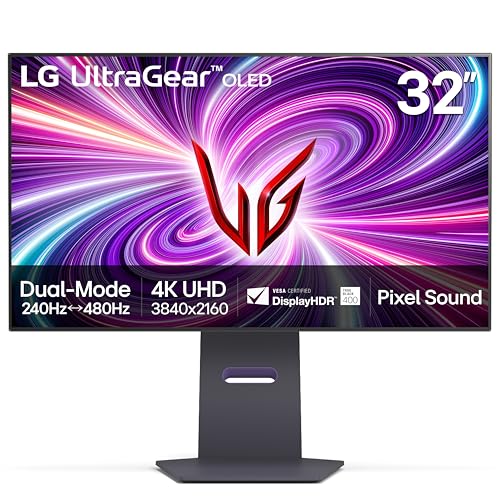
The LG UltraGear 32GS95UE stands out for creative work because its WOLED panel with Micro Lens Array technology reaches high peak brightness while holding deep blacks, and its dual-mode feature switches between 4K at 240Hz and Full HD at 480Hz for fast-paced sessions. Pixel Sound plays audio through the screen itself, which frees desk space otherwise taken by speakers. Colour accuracy out of the box is strong for a gaming-badged monitor, making it a genuine crossover between a work display and a play display.
Specs
- 31.5-inch WOLED panel, 3840 x 2160 resolution
- 240Hz at 4K, dual-mode 480Hz at Full HD
- 0.03ms response time, DisplayHDR True Black 400
- Wide DCI-P3 colour coverage, high peak brightness
- AMD FreeSync Premium Pro, NVIDIA G-Sync compatible
- HDMI 2.1, DisplayPort 1.4, Pixel Sound audio
- Height, tilt and swivel adjustable stand
Best for: Photo and video work that also benefits from a high refresh rate and strong HDR brightness.
Watch out for: It uses DisplayPort 1.4 rather than the newer DisplayPort 2.1, and the dual-mode switch is only useful if you actually play fast-paced games.
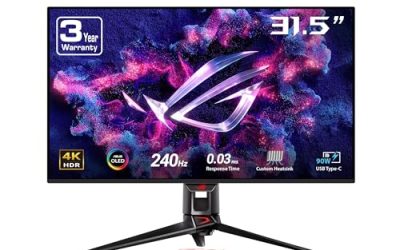
MSI MPG 321URX QD-OLED

The MSI MPG 321URX QD-OLED is the straightforward flat-panel choice for a two-machine desk, with a built-in KVM switch that lets one keyboard and mouse control a desktop and a laptop through the same screen. Full-bandwidth HDMI 2.1 ports keep console and PC connections at full speed, and the 90W USB-C port charges most thin laptops while carrying video. MSI OLED Care routines and a graphene film heatsink address burn-in protection without a fan, so the monitor stays silent during long work sessions.
Specs
- 31.5-inch flat QD-OLED panel, 3840 x 2160 resolution
- 240Hz refresh rate, 0.03ms response time
- DisplayHDR True Black 400, wide DCI-P3 colour coverage
- 2x HDMI 2.1 full bandwidth, DisplayPort 1.4a
- USB-C with 90W power delivery, KVM switch
- MSI OLED Care 2.0 with graphene film heatsink
- Three-year OLED warranty including burn-in cover
Best for: A flat-panel workstation shared between two computers with one set of peripherals.
Watch out for: The flat panel has no built-in speakers worth relying on, and the stand takes up a fair amount of desk depth.
Which One Fits Your Situation
Colour-critical photo and video work
Choose the LG UltraGear 32GS95UE when colour accuracy and HDR brightness decide the purchase, since its bright WOLED panel and wide gamut suit grading and retouching. The Alienware AW3225QF is the fallback if you also want Dolby Vision for client sessions, because its colour handling and HDR peak brightness are close behind. Either way, calibrate the panel and use the sRGB mode for web-bound work.
A workstation that also hosts a console
Choose the Alienware AW3225QF, because its two full-bandwidth HDMI 2.1 ports, eARC audio pass-through and Dolby Vision support are built for console use. The Samsung G80SD is the alternative if you prefer a flat screen with smart streaming built in. Avoid buying a monitor with a single HDMI 2.1 port when two devices will compete for it.
A bright room with windows behind you
Choose the Samsung Odyssey OLED G8 G80SD, since its glare-free coating is the most practical answer to reflections on an OLED panel. Position the screen so windows fall to the side rather than directly behind you, and use the height adjustment to angle the panel slightly downward. A glossy QD-OLED panel in the same room will show every reflection.
Two computers sharing one desk
Choose the MSI MPG 321URX QD-OLED, because its KVM switch and 90W USB-C port let a laptop and a desktop share one screen, keyboard and mouse. Connect the desktop over DisplayPort and the laptop over USB-C, then test the KVM switching before routing cables permanently. The flat panel also keeps windows and design grids undistorted.
Common Mistakes
- Buying a 4K OLED monitor without checking whether the graphics card and cable can drive 4K at the full refresh rate.
- Choosing a curved panel for design work, then finding straight lines and grids look bent at the edges.
- Ignoring USB-C wattage and discovering the monitor cannot charge the laptop it was bought to dock.
- Leaving static taskbars and toolbars on screen all day instead of using pixel refresh routines and screen hiding features.
- Judging text clarity in a shop demo instead of checking the panel type and scaling settings that affect everyday documents.
Frequently Asked Questions
Will a 4K OLED monitor suffer burn-in during office work?
Burn-in is a real risk with static content, but modern panels include pixel refresh cycles, panel shift and screen savers that reduce it. Vary your content, hide the taskbar, use dark mode where it suits you, and run the built-in refresh routine when prompted. A warranty that covers burn-in is worth confirming before purchase, since cover varies by brand.
Is text sharp enough on a 4K OLED monitor for coding and documents?
Text on a 32-inch 4K OLED is generally sharp at normal viewing distances, though QD-OLED and WOLED panels render subpixels differently and some users notice fringing on small fonts. Running the display at 125 or 150 percent scaling usually improves legibility. If text is your whole working day, compare the panel type and try the monitor with your real applications during the return window.
Should I choose a 27-inch or 32-inch 4K OLED monitor for a workstation?
A 32-inch 4K panel gives larger text and more room for side-by-side windows, which suits most workstation upgrades. A 27-inch 4K panel packs pixels tighter and keeps text sharper, but windows feel smaller and the screen can seem cramped for timelines and spreadsheets. Measure your desk depth first, since a 32-inch screen needs more distance to feel comfortable.
What graphics card do I need for a 4K 240Hz OLED monitor?
Driving 4K at 240Hz demands a powerful modern graphics card and a cable rated for the bandwidth, with DisplayPort 1.4 using compression to reach the full refresh rate. For office work, video playback and light editing, a modest card is enough, because the high refresh rate only matters for fast motion. Check the card, cable and port together before assuming the full refresh rate is available.